
Your Disk Is Nearly Full. Where’s the SCOM Alert?
The disk is nearly full. The application owner wants to know why SCOM has not alerted. You open Health Explorer and start explaining percentage thresholds, megabyte thresholds, Warning states, and when those states actually generate alerts.
It is a lot of explanation for a simple question: “When are you going to tell me this disk needs attention?”
We built SCOM2K7 Windows Disk Monitoring to make that answer straightforward:
- Warning: two consecutive readings below 10 % free.
- Critical: two consecutive readings below 5 % free, producing its own alert.
- Recovery: a reading at or above that monitor’s threshold.
Those are the defaults. Change the percentages, the sampling interval or the required number of readings through clearly labelled overrides.
There is also a reliability change behind those simple rules. The performance counter drives health directly, so a failed detail-collection script cannot block the alert.
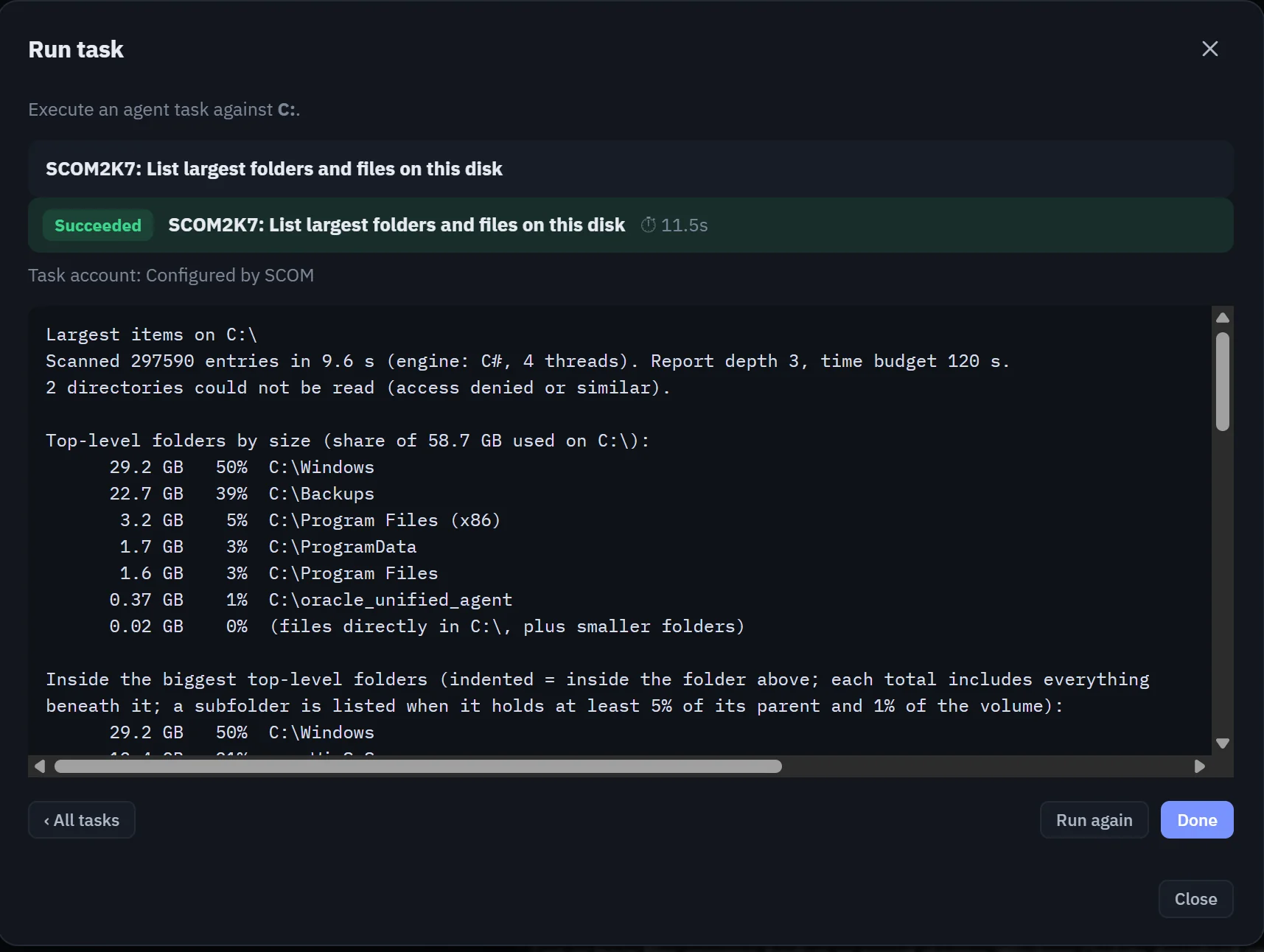
Once the alert arrives, an on-demand console task answers the next question, “what is taking up the space?”, by listing the largest folders and files within configurable limits.
Download SCOM2K7 Windows Disk Monitoring
Sealed management pack, version 1.0.0.0, 17 KB zip. Tested in a SCOM 2022 lab; see the testing and limitations below before deploying. Disable Microsoft’s Logical Disk Free Space monitor before you import it.
When will it alert?
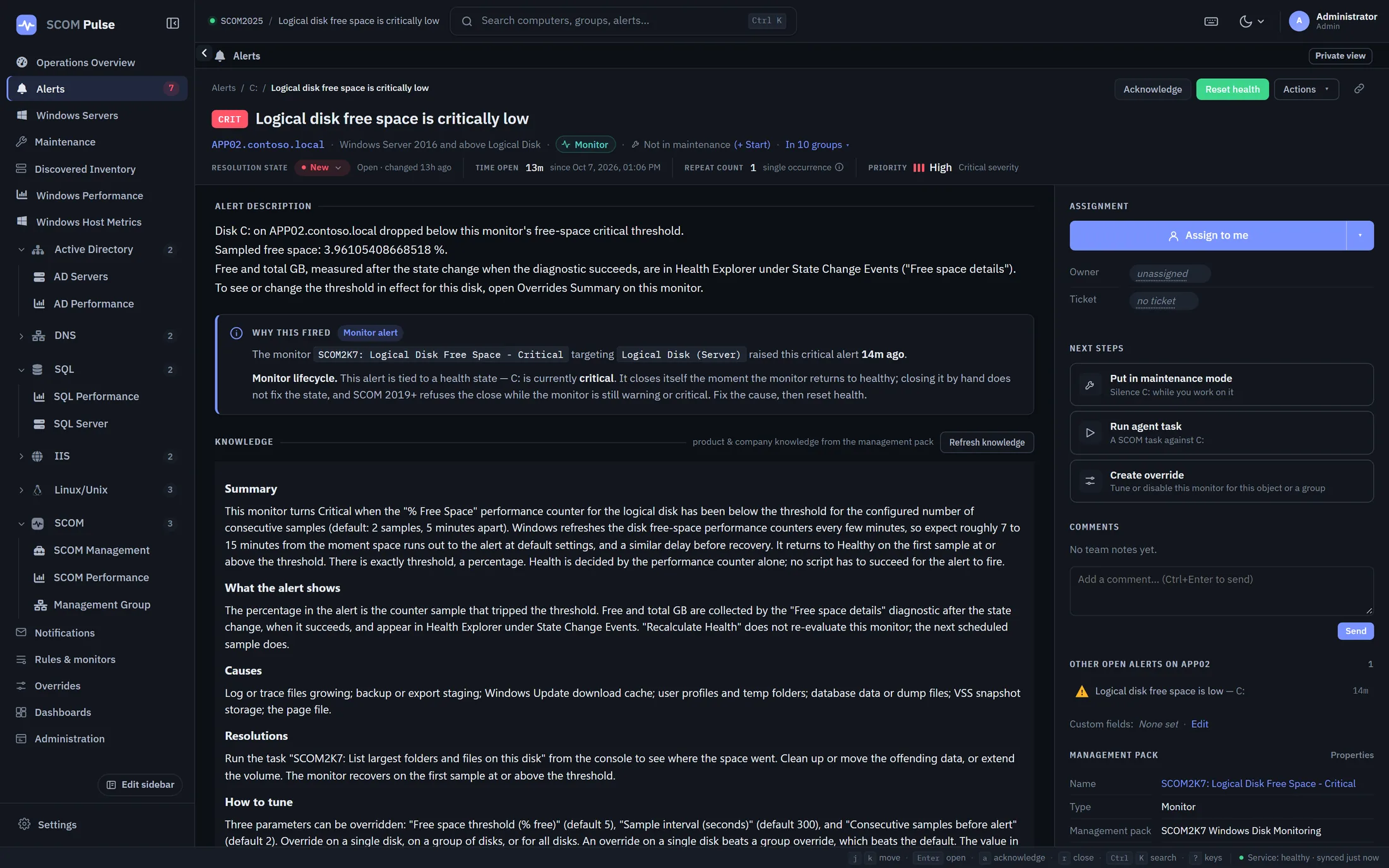
Two monitors, one percentage each. Every five minutes each samples the “% Free Space” counter; two consecutive samples below its threshold raise its alert. Because Warning and Critical are separate monitors, a disk at 4 % has separate Warning and Critical alerts after the required consecutive readings, and a subscription on Critical severity gets its own alert rather than an update to an existing one.
Recovery takes one actual reading at or above the threshold. Restarting the agent should not resolve a disk alert while the disk is still low; we tested that with both monitors unhealthy, and the states and alerts held.
The three overrides are named for what they do: “Free space threshold (% free)”, “Sample interval (seconds)”, “Consecutive samples before alert”; set them per disk, per group, or for everything. For very large volumes, an optional unsealed companion pack adds a “SCOM2K7 – Large volumes (1 TB and over)” group at 3 % and 1.5 %.
Why can’t the detail script block it?
Because nothing in the detection chain runs a script; the counter sample is the health decision. Our earlier pack detected low space and then ran a script to collect the GB figures for the alert text, and if that script failed to return usable data the monitor could remain healthy despite the low readings. The new pack removes that dependency. When either monitor becomes unhealthy, a diagnostic runs one Win32_Volume query and writes free GB, total GB, the label and the current percent into Health Explorer under State Change Events. If it fails, the alert is already open.
The alert says which threshold was crossed, shows the sample that crossed it, and says where the GB details and the threshold live. Both monitors carry a knowledge article with causes, resolutions and tuning.
How do I investigate?
Select the disk and run SCOM2K7: List largest folders and files on this disk. It runs only when you ask, with a hard timeout, a time budget and a depth limit, never follows junctions or mount points, and labels any folder total it could not finish. On a lab server it scanned 297,590 entries on the system drive in under 10 seconds. The defaults are conservative on purpose; a full scan is the wrong thing to start on a struggling disk.
What we tested, and what to expect
Tested in a SCOM 2022 lab with Windows Server 2022 agents. We verified separate Warning and Critical alerts, automatic recovery, diagnostic output, and the investigation task. Restarting the agent while the disk remained low did not clear its alerts.
Alerts are not instantaneous. Windows’ free-space performance counter lagged behind file system changes in our testing. Detection depends on counter freshness, the sampling interval, and the required consecutive readings. Tests used a 60-second interval; timing at the default five-minute interval has not yet been validated.
Mount-point volumes are targeted but have not been tested. Cluster shared volumes and cluster disks are outside this pack’s scope. The Administrator Guide contains the full test results and limitations.
When this pack fits
It fits when you want a threshold an operator can explain in one sentence, a Critical alert that is its own alert, and a health decision no script can block. It is a weaker fit if the fastest reaction to a sudden fill matters more than that, or if you want a megabyte floor without a group. It replaces Microsoft’s monitor rather than running beside it: disable Microsoft.Windows.Server.10.0.LogicalDisk.FreeSpace by override, or you get two sets of alerts per disk.
Download and migration
- SCOM2K7 Windows Disk Monitoring 1.0.0.0, the sealed pack.
- SCOM2K7.Windows.Disk.Monitoring.Overrides 1.0.0.0, the optional large-volumes companion pack.
- The Administrator Guide, as PDF or HTML: tuning, installation, limitations, troubleshooting and the full test summary.
If you use the 2017 pack from the original post, Custom.Windows.Disk.Monitoring, follow the migration guide to export your existing overrides and resolve dependencies before removing it. This is a replacement installation, not an in-place upgrade. Alert history does not carry over.
This pack is free and always will be. If you like a tool that explains itself, have a look at what we spend most of our time on: SCOM Pulse, your everyday SCOM console, in your browser. Investigate alerts, explore health, deploy agents and schedule maintenance from one web console, with nothing to install on monitored computers. The 30-day trial needs no key.